
A tally counter is one of the simplest tools you can own, so it’s frustrating when it stops counting properly. The good news: most problems come down to a handful of causes — a stuck reset knob, a weak battery, a sound setting, or (for online counters) your browser clearing its data. This guide walks through each problem, how to tell which one you have, and how to fix it.
Not sure which kind of counter you have? Mechanical counters show numbers on small rolling wheels; digital counters have an LCD screen; online counters run in your browser. See What Are the Different Types of Tally Counters? if you need a refresher.
Quick Checklist Before You Start
- Press the count button slowly ten times and check that the number goes up by exactly ten.
- Reset to zero and try again — some faults only show up from a certain number.
- For a digital counter, check whether the screen is dim, flickering, or blank.
- For an online counter, note whether the problem happens after closing the tab or only while counting.
That ten-press test tells you most of what you need: whether the counter skips, double counts, sticks, or doesn’t register at all.
How to Reset a Tally Counter
Mechanical (hand) tally counter
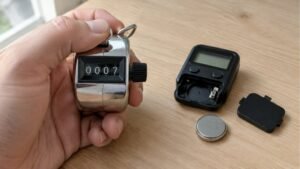
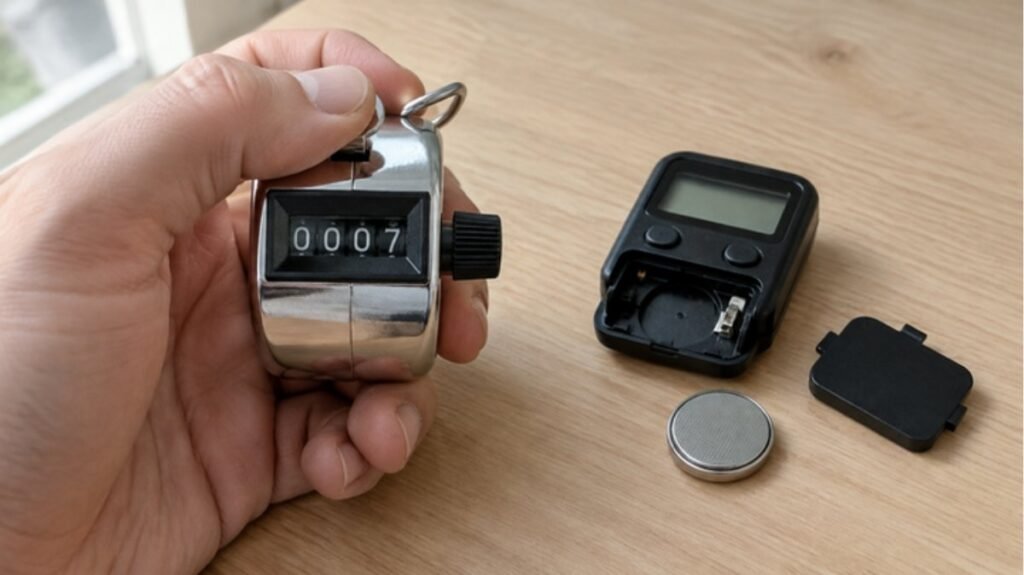
Most mechanical counters have a small knob on the side or top. Turn it fully — usually a full rotation — until every wheel shows 0. If one wheel stops at a different number, keep turning gently; the wheels reset one after another, not always at the same moment.
If the knob won’t turn, don’t force it with pliers. Press and release the count button once to free the mechanism, then try the knob again. A knob that turns but doesn’t bring every wheel back to zero usually means an internal part is worn, and the counter is near the end of its life.
Digital tally counter
Digital counters usually have a separate reset button, often marked “R”, “RESET” or “C”. On many models you hold it for a second or two so that one accidental tap doesn’t wipe your count. Finger-ring counters often use the same button for several functions, so check the instruction leaflet for the exact press-and-hold pattern.
Online counter
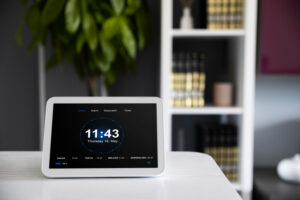
Online counters reset with an on-screen button. On our free online tally counter, each counter has its own reset, and Reset All sets every counter back to zero while keeping their names. Delete All removes the counters completely, so use it only when you want to start from scratch. Both ask you to confirm first, so a stray tap won’t wipe your counts.
Problem: The Counter Skips or Doesn’t Register Every Press
Mechanical: the most common cause is pressing too lightly or too fast. The button needs to travel all the way down and come back up before the next press. Dirt or dust inside the mechanism can also stop the button returning fully. Try pressing firmly and at a steady pace; if it still skips, a gentle puff of compressed air into the gaps around the button can help.
Digital: a weak battery is the usual cause. As the battery runs down, the counter may miss presses before the screen goes noticeably dim. Replace the battery first, before assuming the counter is broken. Our guide Do Tally Counters Need Batteries? explains which types use them and what to expect.
Online: on a phone, very fast taps can sometimes be read as a zoom or scroll gesture instead of a tap. Tap the centre of the button at a steady pace, and avoid tapping while the page is still scrolling.
Problem: The Counter Counts Twice (Double Counting)
If ten presses gives you eleven or twelve, the counter is registering some presses twice.
- Mechanical: a worn spring can make the button bounce back and catch a second time. Pressing with a smooth, complete motion reduces this, but a counter that double counts regularly is worn out and should be replaced if accuracy matters.
- Digital: a worn or dirty button contact can send two signals for one press. Clean around the button with a dry cloth. If the fault continues with a fresh battery, the contact is likely worn.
- Online: double counting is usually a double tap rather than a fault. Use one finger and lift fully between taps.
Problem: The Display Is Blank, Dim or Showing Odd Digits
This applies to digital counters. Work through these in order:
- Replace the battery. Most small counters use a coin or button cell. Match the code printed on the old battery exactly.
- Check the battery direction. The side marked “+” usually faces up or toward the cover. A battery in upside down gives a blank screen.
- Clean the contacts. Wipe the metal contacts with a dry cloth. Any white or green residue is corrosion; it often means the counter got damp.
- Check for moisture. If the counter was used in the rain or near water, remove the battery and let it dry completely for a day before trying again.
If the screen shows missing segments (for example, an “8” that looks like a “6”) after a battery change, the display itself is damaged and can’t be fixed at home.
Problem: The Counter Beeps and You Want It Silent
Many digital counters beep on every press, which can be distracting in prayer, in class, or at a quiet event. Models with a sound option usually toggle it with a dedicated button (sometimes marked with a speaker icon or “MODE”) or by holding a button for a few seconds. The exact method varies by model, so the instruction leaflet is the reliable source.
If your model has no mute option, a mechanical counter or a finger-ring counter without sound is the better choice for quiet counting. Our online counter makes no sound, so it is another option when you need silence.
Problem: The Count Reset Itself or Rolled Back to Zero
It hit its limit. A typical four-digit mechanical counter goes from 9,999 back to 0000. Digital models have their own maximums. If you count very large numbers, read What Is the Limit of a Tally Counter? to choose a counter that goes high enough, or note down the total each time you reach a round number.
The battery was changed or disconnected. Many digital counters lose their count when the battery is removed. Write the number down before changing it.
The reset was pressed by accident. On counters kept in a pocket or bag, the reset button can be bumped. A counter with a press-and-hold reset, or a lanyard that keeps it out of your pocket, helps.
Problem: Your Online Count Disappeared
Our online counter saves your counters in your browser’s storage on that device, so you can close the tab and come back later. Counts can disappear if:
- You used a private or incognito window — the browser deletes its storage when the window closes.
- You cleared your browsing data, cookies or site data.
- You opened the counter on a different phone, computer or browser — counts are saved per browser and don’t sync between devices.
- A storage-cleaning app or battery saver cleared the browser’s data.
For counts that matter, use a normal browser window, stay on the same device, and write down or screenshot the total at the end of each session. More on how browser counters work in How Does an Online Click Counter Work?
Repair or Replace?
- Worth fixing yourself: a flat or reversed battery, dirty contacts, a stiff reset knob, or a sound setting.
- Time to replace: regular skipping or double counting with a fresh battery, wheels that won’t all reset to zero, a cracked case, or a damaged display.
Tally counters are inexpensive, and an unreliable one costs you more in wrong totals than a replacement would. Avoid opening a mechanical counter’s case — the small springs and wheels are difficult to put back correctly. If you’re deciding what to get next, Is a Tally Counter Worth Buying? compares mechanical, digital and free online options.
How to Keep Your Counter Working Longer
- Keep it dry, and wipe it down if it gets wet.
- Store it away from sand and dust, which get into the button mechanism.
- Press with a full, steady motion rather than fast, partial jabs.
- Take the battery out of a digital counter you won’t use for months.
- Do the ten-press test now and then, especially before an important count.
For everyday technique — starting at zero, one press per item, recording the total — see How to Use a Tally Counter: Step-by-Step Guide.
FAQs
Why won’t my tally counter reset to zero?
On a mechanical counter, the reset knob may need a full rotation, or the mechanism may be caught mid-press — press the count button once and try again. If one wheel never returns to zero, the counter is worn. On a digital counter, you may need to hold the reset button rather than tap it.
Why does my digital tally counter skip numbers?
A weak battery is the most common reason. Replace it first. If skipping continues with a new battery, the button contact may be dirty or worn.
How do I turn off the beep on my tally counter?
It depends on the model. Look for a sound or mode button, or try holding a button for a few seconds, and check the instruction leaflet. Some counters have no mute option at all.
Can I repair a mechanical tally counter?
Small fixes like freeing a stiff knob or removing dust are easy. Internal repairs are not practical for most people, and a replacement usually costs less than the time involved.
Conclusion
Most tally counter problems have simple causes: a light or rushed press, a weak battery, a sound setting, a reached limit, or cleared browser storage. Start with the ten-press test, fix the easy things first, and replace the counter if it keeps skipping or double counting with a fresh battery. If you need to count right now while you sort your device out, our free online tally counter works on any phone or computer.